
Session Replay
Record and replay complete player sessions with automatic or manual control.
Session Replay
Session Replay lets you watch exactly how players moved through your game.
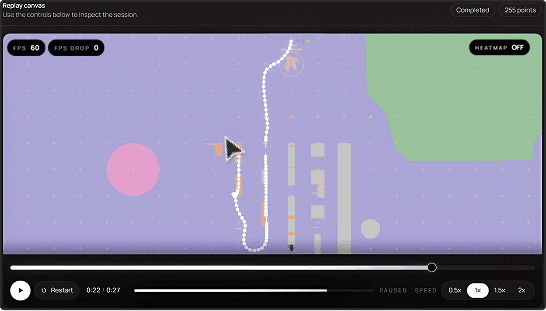
Every replay records player movement, camera rotation, gameplay timing, performance metrics, and an optional heatmap, making it easy to understand player behavior and identify issues.
Two Recording Modes
TrackEdge supports two ways of recording Session Replays.
Automatic Replay
Automatic Replay starts and stops recording for you.
When Auto Replay is enabled in Project Settings, TrackEdge will:
- Start recording when the level begins.
- Stop recording when the player leaves the level.
- Automatically start a new replay when another level loads.
- Keep each level in its own replay session.
This is the recommended option for most projects.
Manual Replay
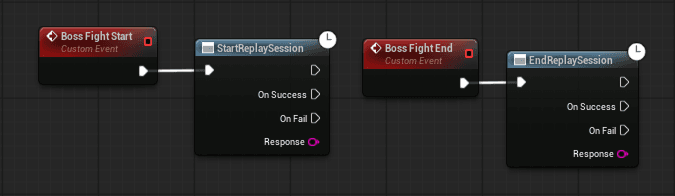
If you need complete control, disable Auto Replay and use the Blueprint or C++ nodes instead.
This is useful for recording only specific gameplay sections such as:
- Boss fights
- Tutorials
- Competitive matches
- Story missions
- Custom gameplay events
Blueprint Nodes
- Start Replay Session
- End Replay Session
Performance Metrics
Every replay point can include optional performance information.
TrackEdge records:
| Metric | Description |
|---|---|
| FPS | Current frame rate |
| FPS Drop | Indicates whether FPS dropped below the configured threshold |
| RAM | Physical memory usage |
| VRAM | Video memory usage |
These metrics can be viewed while watching a replay to quickly identify performance problems.
Replay Heatmap
Each replay automatically generates its own movement heatmap.
The heatmap helps visualize where players spent the most time during that specific replay.
You can enable or disable the heatmap at any time while viewing the replay.
Automatic Level Transitions
When Auto Replay is enabled, TrackEdge detects level changes automatically.
If the player travels to another level:
- The current replay is ended.
- The replay is uploaded.
- A new replay begins for the newly loaded level.
This keeps replay data separated by level and ensures every replay references the correct captured map.
Automatic level transitions only apply when Auto Replay is enabled. Manual Replay gives you complete control over when recording starts and stops.
Best Practices
- Capture every playable map before enabling Session Replay.
- Use Auto Replay for most games.
- Use Manual Replay for important gameplay moments.
- Keep Grid Rows and Grid Columns equal for the most accurate replay visualization.
- Enable the heatmap to quickly identify player movement patterns.
Next
Now its time to add some Capture Points so you can get more information apart from player path!